
Make Podcast Clips on Your Phone


To make podcast clips on your phone, get the episode onto the device or to a link a clipper can read, run an AI clipper from the mobile browser or app to surface and caption the strongest moments, then trim and post the keepers from the phone. The catch: a phone is great for picking, captioning, and posting clips, and bad for precision frame-trimming and multi-track audio work. Lean on it for the first; leave the second for a laptop.
Most "edit on your phone" guides assume the hardest part is the editing app. On a small screen it isn't, it's getting the file there in the first place, and knowing which steps are worth fighting a touchscreen for. This walks both, by where your episode actually came from.
Why a fully mobile workflow is worth setting up
A phone-only loop matters because the clip is what brings new people to a show, and the phone is where you already are. For video shows, one studio's client data puts clips at 20–40% of new audience, with 2–5× reach lifts (Podcast Studio Glasgow), a single-source range, directional rather than audited, but the direction is clear: most of an episode's reach lives in clips you haven't cut yet. And 53% of new US weekly listeners now prefer to watch a podcast rather than only listen (Backlinko, a single-survey reading of direction).
The practical reason to do it on a phone: you record, edit, and post from the same device, with no "wait until I'm back at the desk" gap. A single 20–30 minute episode usually carries a dozen or more candidate moments before quality, not quantity, becomes the limit, more than enough that you don't need a laptop to ship the first five.
Where the file lives on a phone, by source
Here is the first thing the desktop guides skip: on a phone, the file is the problem. Where your episode lives depends entirely on how it was recorded, and that decides whether you paste a link or wrestle with a download.
If it's on YouTube or any public link, paste the URL. This is the answer to the whole "how do I get a huge video onto my phone" problem: you don't. The clipper fetches the stream from the link, so the file never touches your storage or your cellular data. If your show is already on YouTube, this is the path. The source-specific quirks, public vs. unlisted vs. private, are the same on mobile as on desktop, covered in turning a YouTube podcast into short clips.
If it was recorded in Riverside or Zoom's cloud, share the file from the mobile browser. Open the recording's page in your phone's browser, use the share or download action, and either send the file straight to the clipper or save it to Files first. A Riverside recording gives you separate high-quality tracks worth using; a Zoom recording arrives as a gallery file that needs speaker isolation.
If you filmed on the phone, it's already in the camera roll, upload it directly. This is the cleanest mobile case. Pick the video from your library inside the clipper and skip every transfer step.
If it's audio-only, grab the public share link or download the audio file. No video means there's nothing to reframe; the tool builds a waveform or background instead. The full audio-specific flow is in making clips from an audio-only podcast.
What's realistic on a phone vs. what to leave for desktop
This is the honest split, and the part of a mobile workflow nobody tells you. Some clipping steps are genuinely fine on a touchscreen. Others fight you the whole way, and a five-minute desktop pass beats a forty-minute phone struggle. Know the line before you start.
The pattern: a phone is excellent for decisions, which clips are worth posting, what caption style fits, whether the crop kept the speaker, and weak at precision, landing a trim on the exact frame, nudging a caption two pixels, or sitting through twenty edits with your thumb. So pick the keepers on the phone, apply your preset, post the obvious wins, and only open a laptop when a clip needs a precise cut or the audio needs real repair.
The mobile clipping loop, step by step
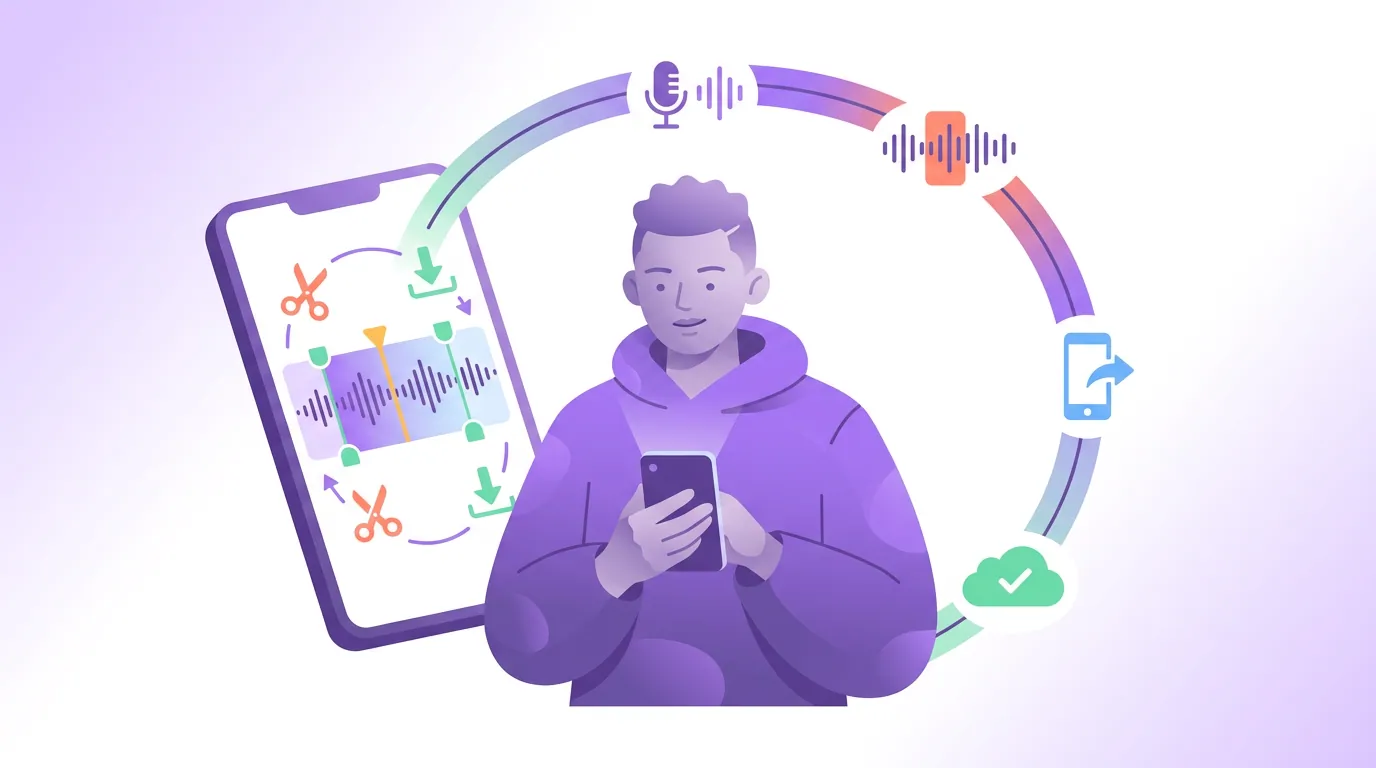
Once the file is sorted, the loop is the same one every AI clipper runs, just done thumb-first. Six steps.
- Get the episode onto the phone. Paste the public URL, or upload the file from the camera roll or Files. Default to the URL whenever one exists, it skips the slow mobile download.
- Generate the candidate clips. The tool transcribes the episode, segments it into windows, and scores each on signals like topic shifts, question-and-answer pairs, and energy spikes. If you want to know why a moment got picked, how AI clip detection actually works breaks down each signal. Let the full pass finish before you judge anything, don't stab at clips while it's still scoring.
- Review with keep / fix / kill. Swipe through the candidates once. Keep the self-contained ones, mark the ones with a good moment but wrong edges to fix, and kill anything that needs context a clip can't carry. How to pick the best AI-suggested clips is the full rubric. This is the only step that needs real judgment, and it's perfectly comfortable on a phone.
- Rough-trim with the handles. Drag the start handle past any dead air at the front; end the clip the instant the payoff lands. On a phone, aim for good, not perfect, get within a second or two. Frame-exact trims are a desktop job (more below).
- Caption and confirm the reframe. Apply your saved caption style preset, then check that the vertical 9:16 crop kept the active speaker in frame, most social video is watched on mute, so burned-in captions aren't optional. Don't hand-place captions pixel by pixel here; a preset gets you 95% of the way.
- Post or schedule. Share the keepers straight to the platforms, or drop them in a queue spread across the week. Lead with your two strongest.
The thumb-friendly trimming trick
The hardest part of editing on a phone is precision, and trimming is where it bites. Fat-fingering a trim handle on a small timeline is how clips end up with a clipped first word or a dangling half-sentence. Three habits fix most of it.
Trim to the words, not the waveform. On a phone, scrubbing to an exact frame is fiddly, but the transcript isn't. If your tool shows the transcript, set the clip's start and end by tapping the first and last word you want, it's far more accurate than dragging a tiny handle, and it lands on natural speech boundaries.
Pinch to zoom the timeline before you trim. A handle that's hard to place at full-episode zoom becomes easy when you expand the few seconds around your cut. Zoom in, place the handle, zoom back out to confirm.
Leave a half-second of air, then check on playback. Cutting too tight is the most common mobile trim error, the first syllable gets eaten. Leave a sliver of lead-in, play it once, and tighten only if it drags. Trimming dead air matters, but a clip that swallows its own first word reads as broken.
Common mistakes clipping on a phone
Downloading a giant file over cellular. A full episode can be gigabytes. Pulling it onto the phone over mobile data is slow and burns your plan. If a public URL exists, paste it and skip the download entirely.
Trying to do frame-perfect work with a thumb. A touchscreen isn't built for single-frame precision. Get the trim close on the phone; if a clip genuinely needs an exact cut, mark it and finish that one on a laptop. Don't lose twenty minutes fighting a handle.
Hand-placing captions on the small screen. Use a saved caption preset and a platform-aware safe zone instead of dragging text by hand. Manual placement is slow on mobile and easy to get wrong.
Editing the whole batch of 20+ clips on the phone. The phone is for the first five keepers you'll post now. Editing a full episode's worth of candidates in one mobile sitting is where the screen size stops being worth it, that's a desktop session.
Posting the AI's exact cut points untouched. Detection finds the region, not the perfect frame. Even on a phone, a quick rough-trim of the lead-in lifts most clips above the raw auto-cut.
FAQ
Can I make podcast clips entirely on my phone? Yes. Get the episode onto the phone or to a public link, run an AI clipper from the mobile browser or app to generate and caption clips, then trim and post the keepers. A phone handles picking, captioning, and posting well. Precise frame-trims and multi-track audio repair are better on a laptop.
How do I get my episode file onto my phone to clip it? If it's on YouTube or any public link, paste the URL so the tool fetches it, no download needed. If it was recorded in Riverside or Zoom's cloud, open the recording in your mobile browser and share or download the file. If you filmed on the phone, it's already in the camera roll, so upload it directly.
Is editing podcast clips on a phone worse than on a laptop? Not for the steps that matter most. Choosing which clips to post, applying caption styles, and posting are fine on a phone. Where a laptop wins is frame-exact trimming, fixing noisy or multi-track audio, and editing a large batch in one sitting, leave those for the bigger screen.
Do clips made on my phone look lower quality? No, if your source is high quality. The clip inherits the resolution of the file or stream you start from, not the device you edit on. Start from the original upload or a public URL rather than a re-compressed copy, and a phone-made clip looks the same as a desktop-made one.
What's the fastest mobile workflow for podcast clips? Paste the episode's public URL, let the tool generate candidates, swipe through keep/fix/kill, rough-trim the keepers by tapping transcript words, apply a saved caption preset, then post or schedule. The only step that needs real attention is the review pass, the rest is taps and short waits.