
Turn a YouTube Podcast Into Short Clips

To make clips from a YouTube podcast, paste the video's public URL into an AI clipper, let it transcribe and surface the strongest moments, then trim, caption, and download the keepers as vertical clips. If the video is private or unlisted, or it is not your channel, you handle it differently: download the file yourself with permission, and confirm you have the right to reuse it before anything posts.
That last part is where most guides go quiet. Pasting a link is the easy 20%. The decisions that actually matter for a YouTube source are which import method to use, what to do when the video isn't public, and whether you are even allowed to clip the thing. This walks all three.
Why YouTube is the source worth clipping from
YouTube is now the home of video podcasting, which makes it the single best source to clip from. It passed one billion monthly podcast viewers in January 2025 (Variety), and 53% of new US weekly listeners now prefer to watch a podcast rather than only listen, up from 30% in April 2022 (Backlinko). Treat that 53% as a single-survey reading of direction, not a hard constant.
The reason to clip from it: the long video already exists, fully framed and captioned-friendly, sitting at a URL you can hand to a tool. One ~20-minute video typically yields 20–30 short pieces (castmagic, industry norm, directional), and for video shows those clips drive a real share of growth, one studio's client data puts clips at 20–40% of new audience, with 2–5× reach lifts (Podcast Studio Glasgow). Both are single-source ranges, not audited guarantees, but the direction holds: the episode is the asset, and most of its reach is in clips you haven't cut.
URL or download: the decision rule
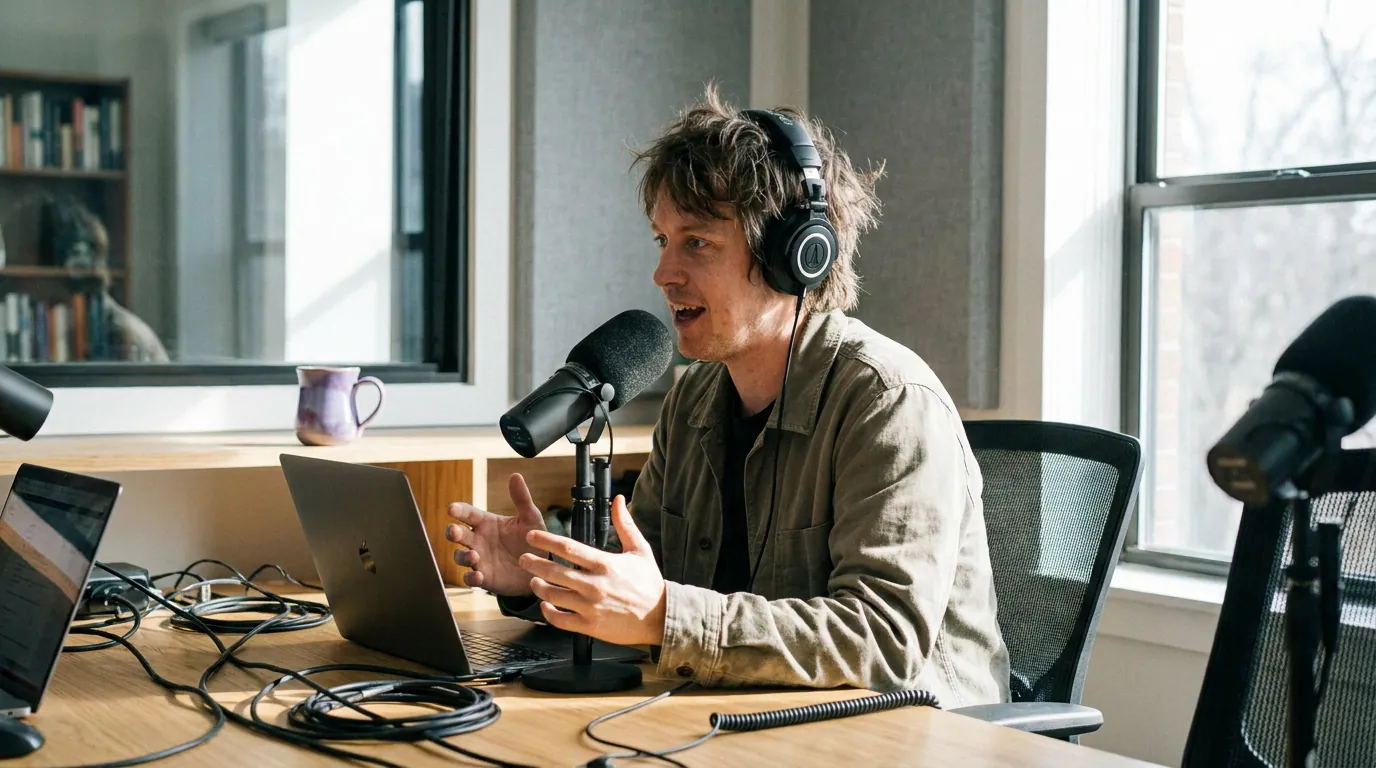
Here is the first source-specific fork, and the one most YouTube guides skip. You can either paste the video URL and let the tool pull it, or download the file and upload it yourself. The right choice depends on two things: who owns the channel, and how the video is set to public, unlisted, or private.
Paste the URL when the video is yours and public. The clipper fetches the stream directly, transcribes it, and you skip the download-then-reupload round trip entirely. It is the fastest path and the one to default to.
Download the file when the video is private, or when speed and quality matter more than convenience. A private video usually won't resolve from a URL, the tool can't see what's locked to your account. Download the original from YouTube Studio (your own uploads let you grab the source), then upload that file. Downloading also gets you the cleanest source: you avoid any re-compression a URL fetch might introduce, which helps caption accuracy and crop quality on the back end.
Unlisted is the in-between. An unlisted video is reachable by anyone with the link, so many tools can pull it from the URL, but if your tool can't, downloading from Studio always works. Try the paste first; fall back to the file.
The five-step path from link to posted clips
Once you've picked your import method, the rest is the same workflow every AI clipper runs. Five steps, in order.
- Import the episode. Paste the URL (public/unlisted, yours) or upload the downloaded file (private, or not your channel). Use the highest-quality source you can, the original upload, not a re-compressed copy, because the whole batch inherits this file's transcript quality.
- Generate the candidate clips. The tool transcribes the full episode, segments it into windows, and scores each on signals like topic shifts, question-and-answer pairs, and energy spikes. If you want to know why a given moment got picked, how AI clip detection actually works breaks down each signal. Let it finish the whole pass before you judge anything.
- Review with keep / fix / kill. Go through the candidates once. Keep the self-contained ones, fix the ones with good moments but wrong edges, and kill anything that needs context a clip can't carry. How to pick the best AI-suggested clips is the full rubric. This is the only step that takes real judgment.
- Caption and reframe to vertical. YouTube podcasts are shot landscape, so every clip needs a 9:16 reframe that keeps the talking face centered, plus burned-in captions, most social video is watched on mute. Set your caption style and brand template once for the batch.
- Schedule the keepers. Push them into a queue spread across the week rather than exporting and re-uploading platform by platform. Lead with your two strongest clips.
When the channel isn't yours: the reuse test
This is the part that gets creators in trouble, and the reason this guide exists. Clipping someone else's YouTube podcast is a copyright question, not a technical one. The video, the audio, and the underlying recording are protected, being public on YouTube does not make them free to reuse (YouTube Copyright). Downloading a video without permission also violates YouTube's Terms of Service in most cases.
So before you clip a channel that isn't yours, run this four-part test, in order, stop at the first "yes":
- Is it your own content? Your channel, your guest appearance you have rights to, or a show you produce, clip freely.
- Do you have explicit permission or a license? A written yes from the rights holder, or a Creative Commons license on the video (YouTube marks these), means you can use it within the license terms. Keep the permission.
- Is it genuine commentary, criticism, or news? Fair use (US) and fair dealing (UK and others) can cover short, transformative clips where you add commentary, but it is a legal defense, not a blanket right, and it is decided case by case. Do not treat "it's fair use" as a free pass; when money or a brand account is involved, get a lawyer's read.
- None of the above? Don't post it. A clip that earns a copyright strike costs more than the clip was ever worth, and three strikes can take down your channel.
The honest version: if you didn't make it and you don't have permission, the safe answer is no. Reaction and commentary creators operate in a grey zone on purpose and accept the risk, that's a deliberate strategy, not a default you back into.
Where the time actually goes
The marketing line is "clip a YouTube video in seconds." Importing and generating are fast. The review pass is where your time lives, and that ratio doesn't change whether you pasted a URL or uploaded a file.
The takeaway: chasing a faster importer saves you almost nothing. Getting faster at the keep/fix/kill review is what shrinks your per-episode time.
Common mistakes clipping from YouTube
Posting the compressed re-upload as your source. If you download a low-resolution copy and feed that in, every clip carries the artifacts. Pull the original from YouTube Studio when you can, or paste the URL so the tool fetches the best available stream.
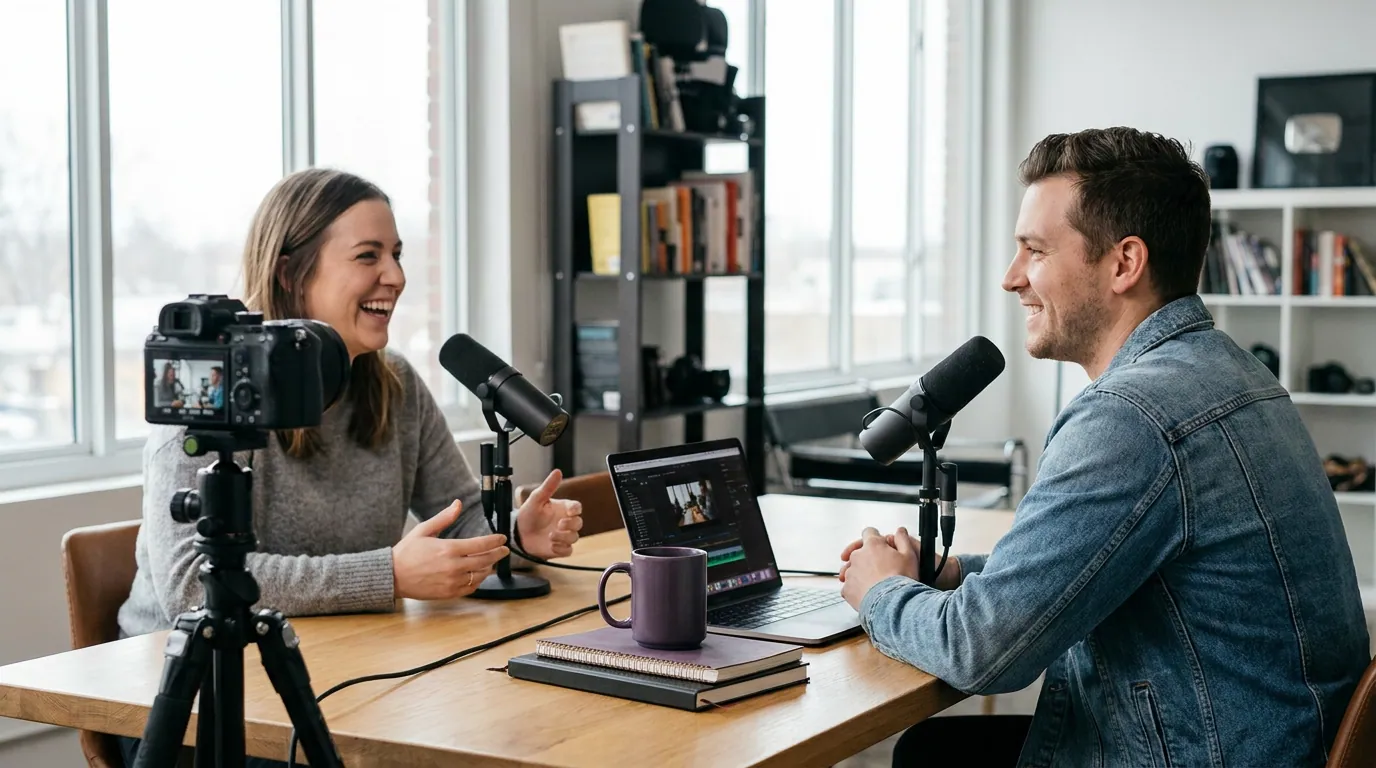
Forgetting that landscape needs reframing. YouTube podcasts are 16:9. Clips for Shorts, Reels, and TikTok are 9:16. Skipping the reframe, or letting an auto-crop center on the wrong person, is the most common way a clip from YouTube looks amateur. Check that the active speaker stays framed.
Assuming public means free to use. Covered above, and worth repeating because it's the expensive one. Public visibility is not a reuse license.
Trying to clip a private video by URL. It won't resolve. Download it from Studio first, then upload the file. If a paste fails on a video you own, privacy state is the first thing to check.
Posting the AI's exact cut points. Detection finds the region, not the perfect frame. Most clips improve if you trim the first 1–2 seconds of lead-in and end the instant the payoff lands.
How this differs from other sources
YouTube is the easiest source because the video is already hosted at a URL and shot in a frame the tool understands. Other sources change step 1 in real ways: an audio-only episode has no video to reframe, so you build a waveform or video background instead; a Zoom recording and a Microsoft Teams recording come as gallery-view files that need speaker isolation; and a Riverside recording gives you separate high-quality speaker tracks worth uploading instead of a screen capture. The review, caption, and schedule steps stay the same, only the import and the framing shift.
FAQ
Can I just paste a YouTube link to make clips? Yes, if the video is public or unlisted and it's your content. The clipper fetches the stream from the URL, transcribes it, and surfaces candidate clips, no download needed. For private videos, or videos on a channel that isn't yours, you download the file (with permission) and upload it instead.
How do I clip a private or unlisted YouTube video? For a private video, a URL paste usually fails because the tool can't access what's locked to your account, download the original from YouTube Studio and upload that file. Unlisted videos are reachable by link, so try pasting the URL first; if it doesn't resolve, download and upload as a fallback.
Is it legal to clip someone else's YouTube podcast? Only with permission, a license, or a genuine fair-use/fair-dealing basis like commentary or criticism, and fair use is a case-by-case legal defense, not a blanket right. Public visibility on YouTube is not a reuse license. If you didn't make it and have no permission, the safe answer is to not post it.
What clip length works best from a YouTube podcast? For Shorts, Reels, and TikTok, 20–60 seconds is the workable range for a single self-contained moment, with most strong clips landing around 30–45 seconds. The cut point matters more than the exact length, end the moment the payoff arrives rather than padding to a target.
Do I need to reframe YouTube clips to vertical? Yes, for Shorts, Reels, and TikTok. YouTube podcasts are filmed 16:9, and those platforms are built for 9:16. Reframe so the active speaker stays centered, and confirm an auto-crop isn't locked onto the wrong person before you export.