
How to Make Clips From an Apple Podcasts Episode


You don't clip from Apple Podcasts, you clip from your original file and Apple Podcasts is just where the episode is listed. Apple is a directory that streams from your host's RSS feed, so there's no clean download to cut from. To make social clips, go back to the source recording (the audio file or the video) you uploaded, and clip that. If you're a listener, the native iOS share feature is a separate, smaller thing, covered below.
This trips up more hosts than any other "how do I clip from [platform]" question, because Apple looks like a source. You see your episode, you see a transcript, you can press play. But there is no "download the file" button that gives you something editable, and the native share tool produces a link, not a captioned video. The fix is a one-line reframe: stop treating the storefront like the warehouse.
Why you can't clip directly from Apple Podcasts
Apple Podcasts is an aggregator. When you publish, your audio (or video) lives on your hosting provider, your host generates an RSS feed, and Apple reads that feed to list your show. Apple streams the file on play; it never hands you a copy you can edit. That's true for every directory built on RSS, Apple, Overcast, Pocket Casts, Castro, and it's why the path always loops back to your own files.
This matters because clips are how an audio-first show grows at all. One production studio puts short clips at 20–40% of new audience, with reach lifts of 2–5× for the shows it produces (Podcast Studio Glasgow), one production house's client range, not a platform-wide audit, but the direction is consistent across formats. You don't want to skip clipping because Apple made the file feel out of reach. The file isn't out of reach. It's wherever you uploaded it.
Step 1: Find your real source file
Go back to whatever you uploaded. If you recorded video, that footage is your best source by far, it gives you a face, motion, and reaction shots that a clip needs. If you only have audio, your hosting provider holds the master MP3, and you almost certainly have the original recording on your own drive too. Start there.
Use this table to find the right file for your situation. The Apple page is never the answer; it just tells you which warehouse to walk into.
One thing to skip: do not screen-record the Apple Podcasts app to "capture" your audio. It's lossy, it's slow, and it captures the player UI you'd then have to crop out. The clean file is sitting in your host's dashboard.
Step 2: Transcribe and pick the moment
Once you have the source file, the workflow is the same as any podcast clip. Transcribe the whole episode first, then cut from the transcript instead of scrubbing the timeline blind. Modern AI transcription is reliable enough on clean podcast audio that a quick proofread is usually all you need, and a transcript lets you scan for the line worth clipping in seconds instead of replaying the whole episode.
Pick a 20–45 second moment built around one quotable claim, a sharp question-and-answer, or one clean story beat. Short matters here: a 60-second clip watched in full is a 100% completion rate, where a 30-minute episode that loses people after five minutes lands under 20% (castmagic), feeds reward the former. So keep it tight and front-load the hook in the first three seconds, before anyone decides to scroll. If you want the mechanics of how a tool finds these moments, how AI clip detection actually works walks through what the model reads, and how to pick the best AI-suggested clips covers the human judgment on top.
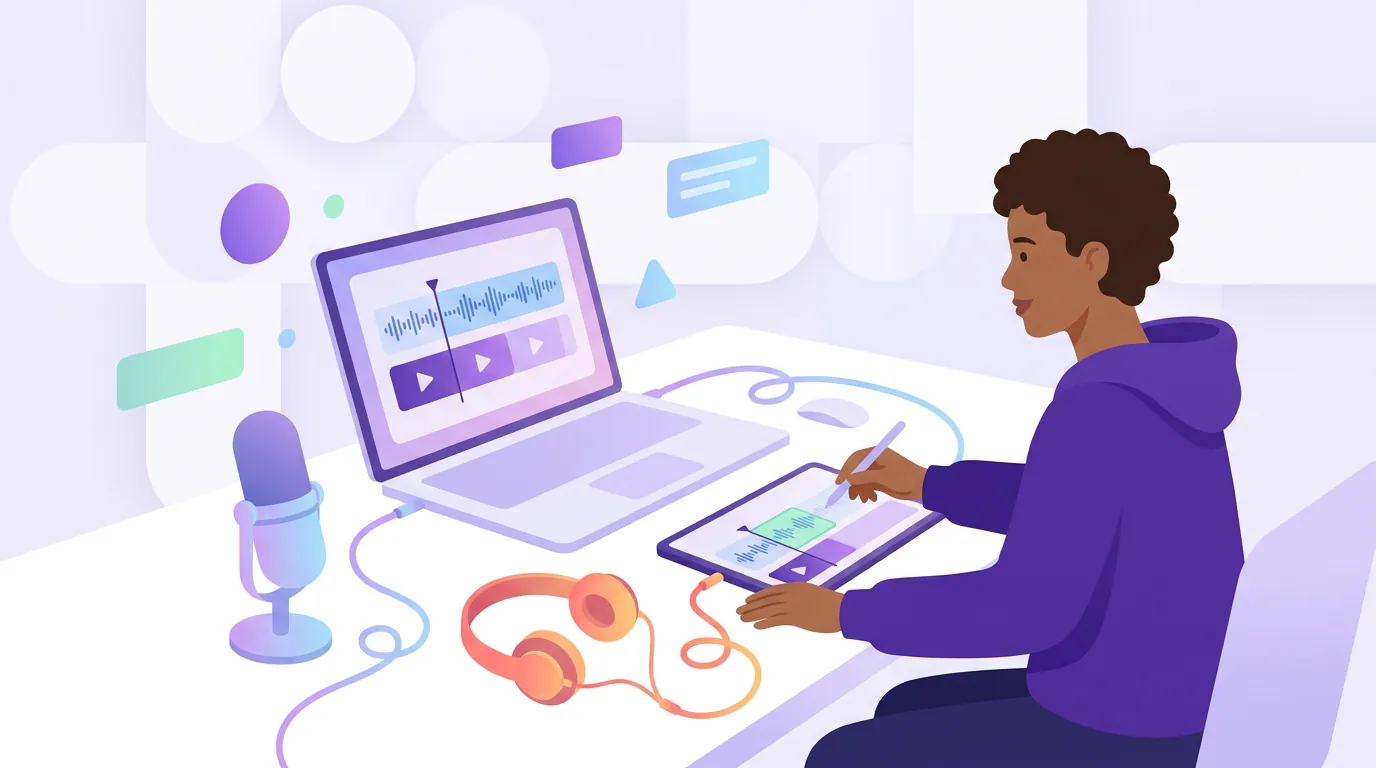
Step 3: Build the clip, video or audio path
From here the format of your source decides the path.
If you have video, clip the footage, reframe it to 9:16, and let the face carry the clip. The full workflow lives in turning a YouTube podcast into short clips if that's where your video sits, or clipping a Riverside recording and clipping a Zoom podcast recording if you recorded remotely.
If you only have audio, you're producing an audiogram: pick a visual treatment, a waveform, an animated background, or a static headshot, and let large captions carry the clip. There's no face to anchor the frame, so the words and the motion do the work. The full audio-first method is in making clips from an audio-only podcast episode. Either way, transcribe once and pull every clip from that single source.
What the native Apple Podcasts share feature actually does
There's a real share-a-moment feature in Apple Podcasts, and it's worth understanding so you don't mistake it for a clip tool. In iOS 18, a listener can open an episode's transcript, tap and hold a passage, and choose Share from [time], which sends a link that opens the episode cued to that spot (Tom's Guide). It's a deep link to a moment, not a downloadable, captioned video file.
That distinction is the whole point. The native feature is built for listeners passing a good moment to a friend inside the Apple ecosystem. It is not built for a host producing a vertical, captioned clip for TikTok or Reels. The two jobs look similar and are completely different. Apple also offers an embeddable player for putting an episode on a webpage, again useful, again not a social clip. If your goal is reach on short-form feeds, neither replaces clipping your source file.
Common mistakes
Trying to download the file from Apple. There's no editable export. Every minute spent looking for one is a minute not spent in your host's dashboard, where the file actually is.
Confusing the listener share link with a social clip. A "Share from [time]" link plays inside Apple and does nothing on TikTok. If you want a vertical captioned video, you have to build it from the source.
Screen-recording the app. It captures the player UI, it's lossy, and you'll spend longer cropping than you would downloading the clean MP3.
Clipping audio when video exists. If you recorded video for the episode, don't make an audiogram out of habit. A face clip outperforms a waveform almost every time, use the footage.
Picking a moment that needs the full episode. A clip has to stand alone. If it only lands after ten minutes of setup, it won't survive as a 30-second standalone, no matter how clean the source file is.
FAQ
Can you make clips directly inside Apple Podcasts? No. Apple Podcasts streams your episode from your host's RSS feed and doesn't give you an editable file. The native iOS 18 share feature creates a link to a moment in the episode, not a downloadable captioned video. To make a social clip, go back to your original source recording, the audio or video you uploaded, and clip that.
Where do I find the original file if I only have the Apple link? Log into your podcast hosting dashboard (Buzzsprout, Transistor, Libsyn, and so on). Your host stores the master MP3 you uploaded; export it from there. If you recorded video, use the YouTube, Riverside, or Zoom file instead, it's a far better source for clips.
What does "Share from [time]" in Apple Podcasts do? It sends a link that opens the episode in Apple Podcasts cued to the moment you highlighted in the transcript (Tom's Guide). It's a listener feature for passing a moment to a friend, not a way to produce a captioned video for social feeds.
Should I clip the audio or the video version? Always the video if you have it, a face anchors attention that a waveform can't. Only fall back to an audiogram when the episode is audio-only. The audio-only clip workflow covers how to make a static frame hold attention.
Is it different for other directories like Spotify or Overcast? The principle is identical: they're all directories reading your RSS feed, so none gives you an editable download. Overcast and Pocket Casts have their own listener-facing clip-share tools, but for producing social clips you still go back to your source file every time.