
How to Make Clips From a Webinar for Social


To make clips from a webinar, treat it as two recordings in one. Split the slide-share segments from the talking-head segments, then clip only the moments that stand alone: the Q&A answers, the single best stat, and the live demo. Skip the agenda, the housekeeping, and the slide-reading. Reframe each pick to vertical, caption it, and post.
A webinar is the hardest source to clip well, and it's not because the content is weak. It's because most of a webinar is footage that does not survive being cut to 45 seconds, a screen-share of dense slides, a host reading bullets, ten minutes of "can everyone see my screen." Buried inside that are three or four genuinely clippable moments. The skill is finding them and cutting away everything else. Below: how to separate the two kinds of footage, a ranked list of which webinar moments actually travel, and how to reframe a slide-plus-face layout into a vertical clip.
A webinar is two recordings in one file
The single most useful thing to understand about webinar footage is that it switches between two completely different modes, and each clips differently. Slide-share mode is a screen-share of the deck with the presenter tucked into a thumbnail or off-screen entirely. Talking-head mode is the presenter's camera filling the frame, usually during the intro, the Q&A, or a story. The same 60-minute recording flips between these many times.
This matters because the modes have opposite strengths. A talking-head segment reframes cleanly to vertical, there's a face, a voice, an expression. A slide-share segment is wide, text-heavy, and built for a desktop monitor; crop it to 9:16 and the slide becomes an unreadable sliver. The first move in any webinar edit is to mark which mode each candidate moment lives in, because that decides whether you clip the speaker, the slide, or both.
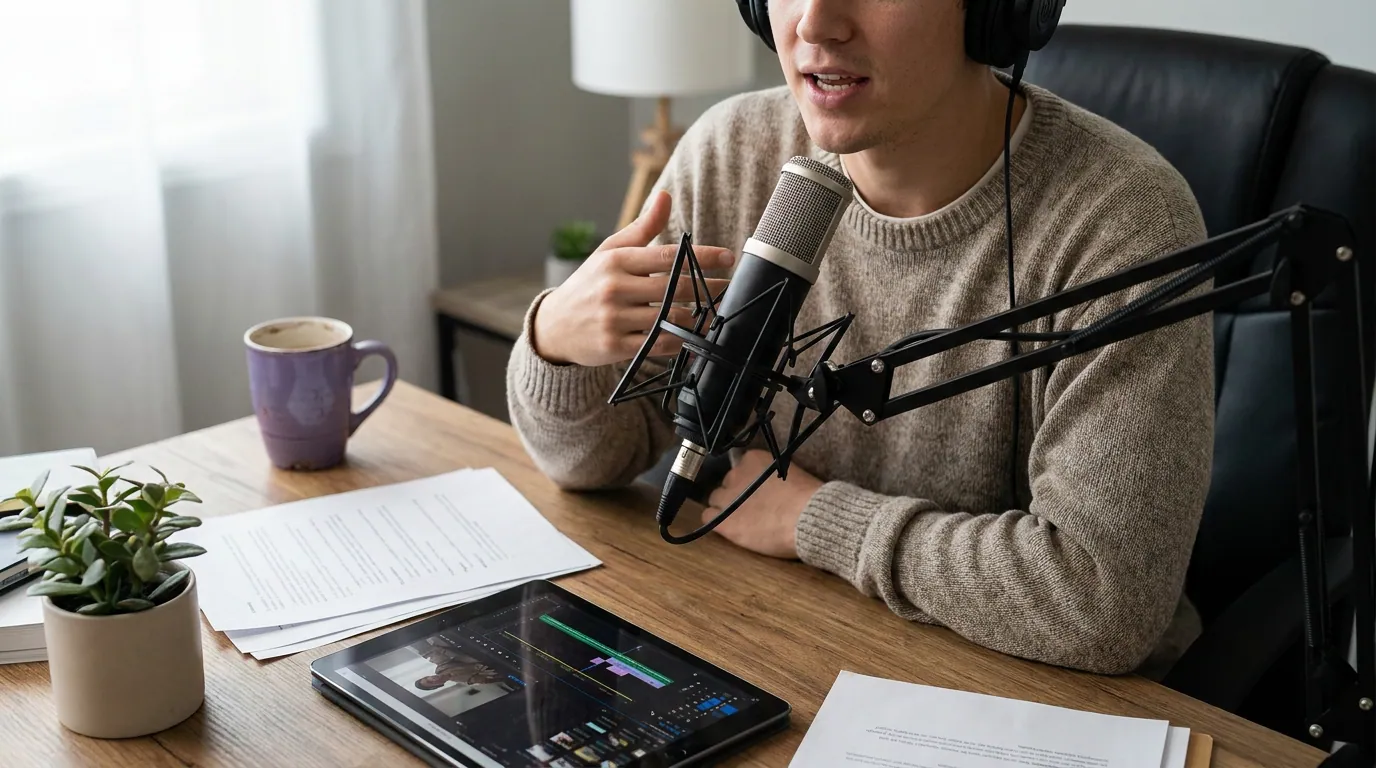
Why clip a webinar at all
A finished webinar is a long, gated asset that most of your audience will never sit through. Clips are how the best parts escape the replay page and reach people who'd never register. Short-form clips drive an estimated 20–40% of new audience for video content and can lift reach 2–5× (Podcast Studio Glasgow). A single webinar with three strong moments is three social posts you didn't have to film.
The pull is stronger because audiences increasingly want to watch, not read a recap. 53% of new US weekly podcast listeners now prefer to watch a show, up from 30% in April 2022 (Backlinko), the same shift that makes a webinar clip outperform a blog summary of the same talk. You already have the footage. The work is pulling the few moments that earn a feed.
Which webinar moments actually clip
Lead with the Q&A answers and the single best stat, they clip best, then the live demo and any contrarian take. A short story clips moderately; the agenda, housekeeping, and slide-reading don't clip at all. The lazy approach, clipping segments in chronological order, spends your effort on the worst footage first. Order by clippability instead.
Here's the reasoning behind the order. The Q&A wins because it's unscripted, a real question forces a direct, conversational answer, which is exactly the talking-head footage that clips well. The one stat wins because a single number is a hook: "we tested this across 4,000 accounts and one thing predicted churn" stops a scroll on its own. The demo clips when there's a visible payoff, the moment something works on screen, but only if you can keep the screen legible (more on reframing below). A contrarian take ("everyone says X; we found the opposite") travels because it invites argument in the comments.
What rarely clips: the agenda slide, the "thanks for joining," the sponsor read, and any stretch of the presenter reading bullets aloud. These are the connective tissue of a webinar, not its highlights. If a moment only makes sense after twenty minutes of setup, it isn't a clip, it's a segment.
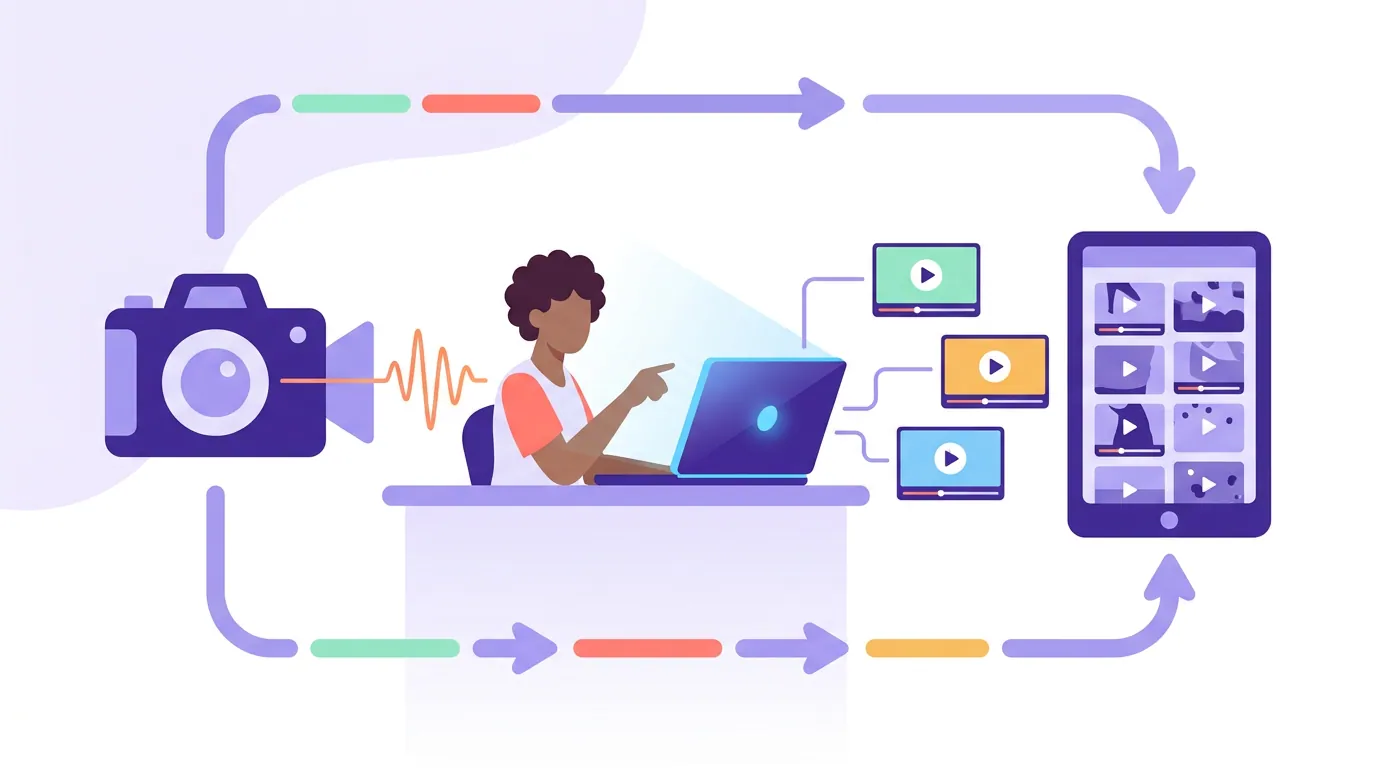
The steps: webinar recording to posted clips
- Get the highest-quality recording, with the chat export. Download the full-resolution MP4 from your webinar platform (Zoom Webinar, Demio, Livestorm, GoToWebinar, or a YouTube/livestream re-host). Export the Q&A and chat log too, it tells you which questions landed and timestamps the best answers.
- Mark the mode of each candidate moment. Skim the recording or transcript and tag each strong moment as talking-head or slide-share. Talking-head moments are your easy wins; slide-share moments need extra work or a rebuilt slide. This single pass saves the most time.
- Pull the moments that stand alone. Find the 30–90-second stretches that don't need setup: a Q&A answer, the one stat, the demo payoff, a contrarian line. A 60-minute webinar usually holds three to six real clips. Don't force more, a forced clip drags the good ones down.
- Reframe to vertical by mode. Talking-head segments crop straight to 9:16 on the presenter's face. Slide-share segments need one of the three layouts below, because a raw slide cropped to vertical is unreadable.
- Caption everything. Most social video plays on mute, so a webinar clip without captions loses most viewers in the first seconds. Burn captions in and keep them out of the platform UI zones. Check the first three seconds, that opening carries the most engagement (castmagic).
- Trim the throat-clearing. Cut the "great question," the "so basically," and the pause before the answer. A webinar answer often has a 4-second windup; the clip starts after it.
- Export and schedule. Render at 1080 × 1920 and post across Shorts, Reels, TikTok, and LinkedIn, the last one matters more for B2B webinars than for most podcast clips.
Three ways to reframe a slide-plus-face webinar layout
The webinar-specific headache is the slide. A typical webinar frame is a wide slide with a small presenter thumbnail in a corner, built for a 16:9 monitor, hostile to a 9:16 feed. Center-cropping it gives you the middle third of a slide and half a face. Three layouts fix it.
Face-only is the default for any talking-head moment, Q&A, a story, a contrarian take. Crop tight to the presenter and drop the slide entirely; the words carry it. Slide-over-face stacks the deck in the top half and the presenter below, which is the only layout that works for a demo or a data slide where the visual is the point. Rebuilt text is the underrated one: instead of cropping a dense slide, retype the single number or the one line as clean, large text over the speaker. A slide reading "Q3 churn dropped 31% after the change" becomes a bold caption, far more readable on a phone than the original slide ever was. The same speaker-framing logic applies when you have two presenters; see how to frame two speakers in one vertical clip.
Common webinar-clip mistakes
- Clipping in chronological order. The first ten minutes of a webinar are housekeeping and the agenda, the worst footage in the file. Jump to the Q&A and the demo first. Order by clippability, not by timestamp.
- Cropping a dense slide to vertical. A slide built for a monitor becomes an unreadable sliver at 9:16. Rebuild the one number as text, or go face-only and let the answer stand.
- Leaving the windup in. Webinar answers start slow, "yeah, great question, so the way I think about this is…" Cut to the actual answer. The clip is 30 seconds shorter and twice as strong.
- Forgetting captions. A webinar clip is a talking-head clip, and talking-head clips die on mute. Burn captions in, keep them out of the platform's button zone.
- Treating the whole demo as one clip. A five-minute demo is a segment. Clip the 40 seconds where the thing works, the payoff, not the setup.
The tools: by hand vs an AI clipper
By hand, a webinar clip is slow. You'd drop the MP4 into CapCut, Premiere, or DaVinci Resolve, scrub a full hour to find the talking-head moments, manually crop the presenter out of the corner thumbnail, rebuild any slide you want to keep, then caption. Budget 30–60 minutes per finished clip, and that's before you've watched the whole webinar once to know what's in it.
An AI clipper collapses the finding step. It transcribes the recording, surfaces candidate moments, reframes the presenter to vertical, and auto-captions, so a one-hour webinar becomes a batch of drafts you review instead of build. QuickReel does this, and so do alternatives like Opus Clip and Vizard. The honest framing: most modern tools detect roughly 80% of the same moments, the real difference is how few clicks sit between your recording and a posted clip. One webinar-specific caveat: AI clippers favor talking-head footage and will under-surface a slide-heavy demo, so check the screen-share stretches yourself. And every clipper still needs 20–40% human review, confirm the right framing, fix captions, and make sure no key slide text got cropped. It's an accelerant, not a replacement editor. For the review pass, see how AI clip detection actually finds the moment and how to pick the best AI-suggested clips. If your webinar was recorded on a call platform, the platform-specific gotchas in making clips from a Zoom recording apply directly.
FAQ
How do I turn a webinar into clips for social media? Download the full-resolution recording, mark which moments are talking-head versus slide-share, then clip only the parts that stand alone, the Q&A answers, the single best stat, and the demo payoff. Reframe each to vertical (face-only for talking-head, slide-over-face for demos), caption it, and post.
Which parts of a webinar are worth clipping? The Q&A answers and the single best stat clip best, followed by the live demo and any contrarian take. Skip the agenda, the housekeeping, the sponsor read, and stretches of the presenter reading bullets, those are the connective tissue of a webinar, not its highlights.
How do I clip a webinar slide that's too wide for vertical? Don't crop it. Either rebuild the one number or line as clean, large text over the presenter, or go face-only and let the spoken point carry the clip. Cropping a dense desktop slide to 9:16 leaves an unreadable sliver, the rebuilt-text version reads far better on a phone.
How many clips can I get from one webinar? Usually three to six genuinely strong clips from a 60-minute webinar. Most of the runtime is setup, slides, and housekeeping that doesn't survive being cut to 45 seconds. Forcing ten clips out of one webinar dilutes the three that would have worked.
Can an AI tool clip a webinar automatically? Mostly. An AI clipper will transcribe the webinar, surface candidate moments, reframe the presenter, and caption, but it favors talking-head footage and tends to miss slide-heavy demos, so review the screen-share stretches yourself. Plan on a 20–40% human-review pass on any tool's output.
Related guides: making clips from a YouTube podcast video, making clips from a Zoom recording, and making clips from an audio-only episode.