
Cut a Clip From a Specific Podcast Timestamp


To cut a clip from a specific timestamp, jump straight to that point in the episode, then move both edges outward to the nearest clean sentence break, never cut on the raw clock time. Add three to eight seconds of lead-in so a cold viewer knows what's being answered, trim the dead air, caption it, and post. The timestamp is your anchor, not your cut point.
Most timestamp tutorials stop at "scrub to 1:14:30 and hit split." That's the part you already know how to do. The hard part, and the reason a lot of these clips flop, is that the moment you remember almost never starts and ends on a tidy second. It starts a few words into a sentence and ends mid-thought, with no context for anyone who wasn't listening to the full episode. This guide gives you the workflow for the situation you're actually in: you know the moment, and you need to build a clean, self-contained clip around it.
How do you make a clip from a specific timestamp?
Open the episode and jump to the timestamp you remember. Then snap your in-point back to the start of the sentence that begins the thought, and your out-point forward to the end of the sentence that finishes it. Add a few seconds of lead-in context before the payload, cut the silences, caption, and export at 1080×1920. The timestamp finds the moment; sentence boundaries make it a clip.
The difference between a raw timestamp cut and a clean one is the difference between a clip that gets watched and one that gets scrolled past in the first second. When you cut on the clock, say, exactly 1:14:30 to 1:15:00, you almost always start in the middle of a word and end before the point fully lands. A viewer hears half a sentence, has no idea what the question was, and leaves. The fix costs you about thirty seconds of edit time per clip.
Why timestamp clips fall apart (and the lead-in fix)
A clip pulled from one remembered moment carries a hidden problem: you know the context, so the missing setup is invisible to you. A new viewer doesn't. They land on the answer without the question, the punchline without the build, the reaction without what was reacted to. The moment that killed in your headphones dies cold on a feed.
Clips are worth getting right because they carry real audience weight. One production house, citing industry research, says clips can account for 20–40% of new audience for video shows and lift discovery reach 2–5× with consistent posting (Podcast Studio Glasgow), secondary figures, not a controlled study, but the direction is consistent across operators. A single timestamp clip you make on purpose, around a moment you already trust, is often a better bet than ten the algorithm guessed at. So build it properly.
The fix is lead-in context: a short run-up before the payload that orients a cold viewer. Sometimes that's the host's question. Sometimes it's one sentence of your own as a text hook over the opening seconds. Either way, the clip has to answer "what am I watching and why should I care" before it delivers the moment.
The "I already know the moment" workflow
Four steps. You start where most tutorials stop, at the timestamp, and spend your effort on the edges and the context instead.
Step 1: Jump straight to the timestamp
Use the timecode you already have. If you noted "1:14:30" while recording or listening, paste it into the player's time field or scrub the timeline to it, every editor and most players let you type a timecode to jump. On YouTube, appending &t=4470s to the URL lands you there directly. Drop a marker at that exact point. This is your anchor, and it's the only part of the process that uses the clock at all.
If you logged moments by ear and don't have exact timecodes, transcribe the episode first and search the text for the line you remember, that's faster than scrubbing, and it puts you within a sentence of the moment instantly. For a workflow built around finding moments you haven't pre-marked, see how AI clip detection actually works; here we assume you already know the spot.
Step 2: Snap both edges to sentence boundaries
This is the step that makes or breaks the clip. From your marker, move the in-point backward until it sits at the very start of the sentence that opens the thought, the first word, not three words in. Then move the out-point forward to the end of the sentence that completes the idea, including the final beat where it lands. Cutting on a full sentence on each side is what separates a clip that sounds finished from one that sounds chopped.
A reliable way to find the right edges fast: read the transcript around the timestamp rather than listening on repeat. The sentence breaks are visible as text, and you can set both edges in seconds instead of nudging the playhead back and forth. If your editor snaps cuts to word boundaries from the transcript, use it, that's exactly the tool for this.
Step 3: Add lead-in context
Now decide what a cold viewer needs before the payload. Three options, in order of preference:
- Include the question. If the host asked something that sets up the answer, pull your in-point back far enough to capture it. The question is free context and the cleanest possible hook.
- Add a text hook. If there's no usable question, write one line of on-screen text over the opening two or three seconds, "Why he stopped reading the news," "The mistake that cost her $40k." It frames the moment without adding runtime to the talking.
- Keep a short run-up. Sometimes one sentence of build before the key line is all the context needed. Three to eight seconds is plenty; more and you lose people before the moment arrives.
Pick one. Stacking all three buries the moment. The goal is the minimum context that makes the clip legible to someone who has never heard the show.
Step 4: Trim the dead air, caption, and export
Tighten the inside of your clean edges. Cut the first 1–1.5 seconds of silence before the first word and any long mid-sentence pauses, a clip pulled around one moment is small enough that dead air is obvious. Then caption it.
Captions aren't optional, because most social video plays silent, one widely cited estimate puts around 85% of Facebook video watched with the sound off (Digiday, 2016 publisher-reported data; treat it as directional, individual studies range roughly 69–85%). Burn in large, word-synced captions, place your hook line at the top out of the platform's UI safe zone, and export at 1080×1920. Post natively to each platform rather than linking out.
Common mistakes cutting at a timestamp
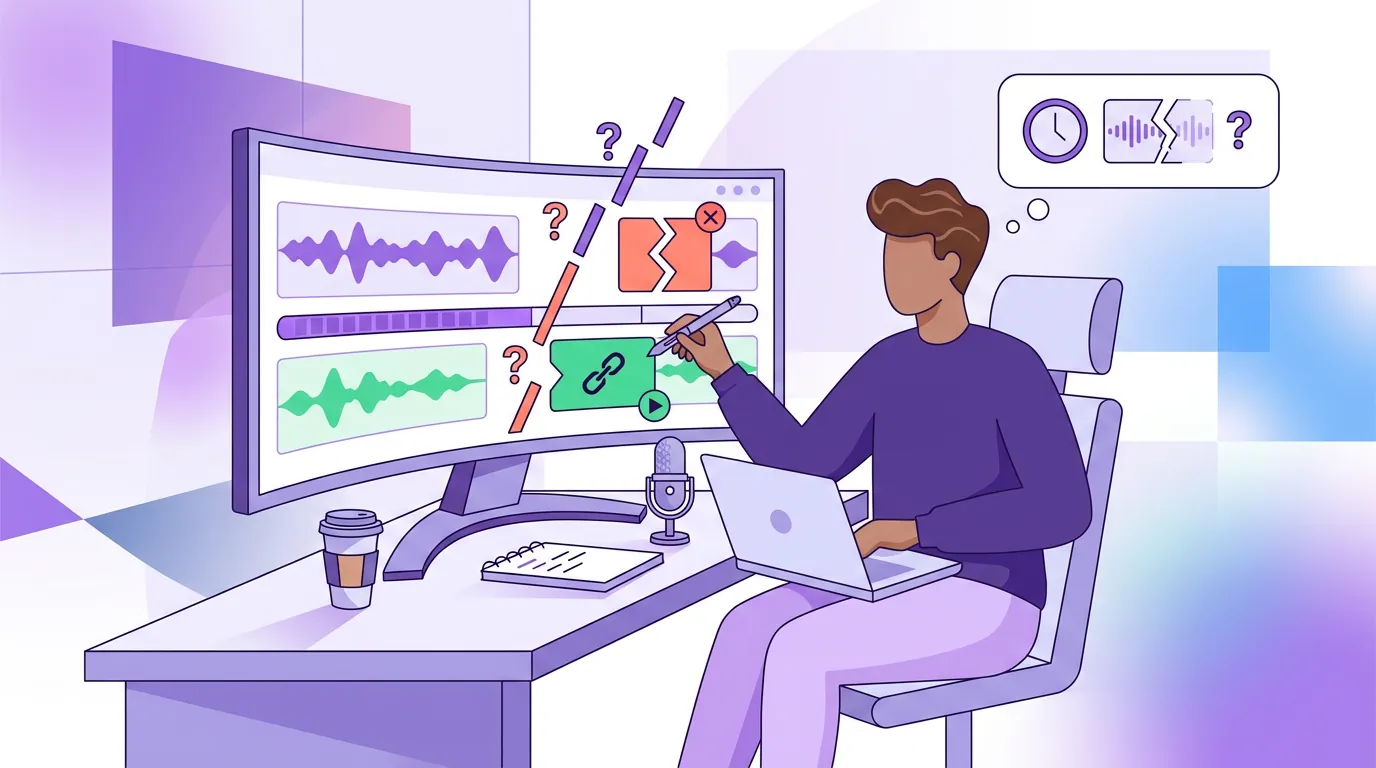
Cutting on the clock, not the sentence. A clip that starts at exactly 1:14:30 almost always starts mid-word. Snap both edges to full sentences every time, it's the one fix that does the most work on this list.
Forgetting you already know the context. The setup feels obvious to you because you heard the episode. It isn't obvious to a cold viewer. If you can't say what question the clip answers in the first few seconds, add a lead-in.
Grabbing only the punchline. The reaction or the one-liner you remember usually needs its build to land. Pull the in-point back to include enough setup that the payoff pays off.
Leaving the moment too long. Knowing exactly where the moment is tempts you to keep "a bit on each side." Keep one beat, one claim, answer, or story, in roughly 20–60 seconds; clipping tools generally target the same band, with Castmagic naming 30–90 seconds as the segment range to aim for (Castmagic). If two good moments sit next to each other, make two clips, an over-padded single clip loses people before the payoff.
Ignoring where the file came from. A recording from Zoom, Riverside, or a YouTube upload each carries quirks worth knowing before you cut around a timestamp. See clipping a YouTube podcast video, making clips from a Zoom recording, or clipping a Riverside recording.
FAQ
How do I cut a video at a specific time? Jump to the timecode in your player or editor, type it into the time field, or append &t= to a YouTube URL, and drop a marker. Then move your in- and out-points outward to the nearest full sentence on each side, rather than cutting on the exact clock time, so the clip sounds finished instead of chopped.
Why does my clip start in the middle of a sentence? Because you cut on the clock instead of the speech. The moment you remember almost never begins on a tidy second. Pull your in-point back to the first word of the sentence that opens the thought, and push the out-point to the end of the sentence that finishes it.
How much context should a timestamp clip include? Just enough that a cold viewer understands the moment, usually three to eight seconds of lead-in, ideally the host's question, or one line of on-screen text. The setup feels redundant to you because you heard the full episode; it isn't to someone seeing the clip first.
Can I clip a podcast at a timestamp from audio only? Yes. Snap the same sentence boundaries around the timecode, then add a visual layer, a waveform, a static frame, or animated captions, so it works on a video-first feed. Making clips from an audio-only episode covers the visual treatment in full.
Should I make one timestamp clip or let AI find clips for me? Do both. A clip you make on purpose around a moment you already trust is often your strongest of the week. Then let detection surface the moments you missed, and pick the best AI-suggested clips from what it returns. The hand-picked moment and the machine pass cover different gaps.